



Replies, conversation and settings in OfficeMail
-
Administration
- 30 Days Money Back
- Automatic payments
- Cancel a contract
- Change address data
- Change contact person (company)
- Change password
- Display bills
- Emergency support costs
- Enable renewal notifications
- FAQ infrastructure and security
- Fewer Invoices
- Invoice by mail
- Manage Contacts
- Monthly consolidated invoice
- Partner administration
- Password Forgotten
- Payment methods
- Payment slip
- Product Transfer
- Recruiting friends
- Reminder
- Server Data Centre
- Set up a points alert
- Setting up two-factor authentication
- Storage Overview for Resellers
- Top up credit
- Unlock Express
- Webmail Link
- weitere Artikel ( 23 ) Einklappen
-
Cloud Storage
- Add as network drive
- Create cloud storage user
- first steps
- Login Cloud Memory
- mount under Linux
- Nextcloud: cloud icon on files
- PC backup to the cloud
- weitere Artikel ( 2 ) Einklappen
-
DNS Service
- Change DNS entries
- Change SPF entry
- DNS API
- DNS API Powershell example
- DNS Entries in the DNS Package
- DNSSEC Deactivate
- DynDNS with a MikroTik router
- Let's Encrypt with Cert Warden
- Let's Encrypt with DNS validation
- Questions about DNS Service
- Set up your own SPF server
- SPF entry
- TLD's that support DNSsec
- weitere Artikel ( 8 ) Einklappen
-
Domain
- .ZUERICH DOMAINS Register
- Activate Whois Privacy
- Cancel domain
- Change contacts
- Change DNS entries
- Change DNS Server
- Check DNSSEC
- Configure domain for mail traffic
- Connect website to Squarespace
- Connect website with Wix
- Connect your website to Jimdo
- Deactivate DNS Records
- Difference in domain redirect
- DNSSEC
- DNSSEC Deactivate
- Domainreseller
- Enable Domain Access
- Enable domain forwarding
- Extend domain
- Google Optimization
- Google search optimization
- Google SiteVerification
- Link domain
- Own Nameserver
- Proper DNS records
- Questions about the domain
- Restore a domain
- Restriction forwarding
- Search engine registrationa
- Sell your domain: how to put a domain up for sale
- Set up your own SPF server
- Transfer domain
- Use an external domain
- What is DANE/TLSA?
- What is MagicDANE?
- weitere Artikel ( 30 ) Einklappen
-
E-Mail
-
- Email does not reach me and the sender did not receive an error message
- Error "Client host rejected: cannot find your hostname"
- Gmail is blocking mails
- I get an error message when I send an email.
- I'm on a blacklist
- MacMail Problem: Required mailbox name to create ImapMailbox for (null)
- Proper DNS records
- Request emergency service
- weitere Artikel ( 3 ) Einklappen
-
- keine Artikel vorhanden
-
- keine Artikel vorhanden
-
- Change email password
- Create email address
- Create Email Forwarding
- Difference mailbox types
- DNSSEC
- Email Ports for IMAP, POP3, SMTP
- Emails using external provider
- Emails using external provider
- Exchange Konto übertragen
- Message "mailbox for user is full"
- Send e-mails
- Transfer Email
- Webmail Link
- What is DKIM?
- weitere Artikel ( 9 ) Einklappen
-
- keine Artikel vorhanden
- Are our e-mails encrypted?
- Automatic e-mail reply
- Automatic mailbox cleanup
- Backup emails locally
- Change password
- Customize e-mail addresses in the Microsoft Portal
- E-Mail Signature
- E-Mail-Transfer Outlook (PST-File)
- external name servers
- Frequently asked questions about the webmail switch to OfficeMail
- Gmail is blocking mails
- Important SPF entries
- JUNK Mail in Outlook
- Mail Log
- Newsletter Server important questions
- Office365 Logout and Setup
- OfficeMail Account Settings
- Replies, conversation and settings in OfficeMail
- Report SPAM Mails
- Restriction forwarding
- Send e-mails
- Send email as attachment
- Set up email alias
- Setting up an email account in Thunderbird
- SPF entry
- Using OfficeMail
- Webmail Link
- Webmail Login does not work
- What is DANE/TLSA?
- What is DKIM?
- What is MagicDANE?
- weitere Artikel ( 26 ) Einklappen
-
-
Einrichtung
-
Server
-
-
- Add module PGSQL in PHP
- Change IP at Confixx
- Confixx 3.1 End User Manual
- Confixx 3.1 Special Edition Manual for Administrators
- Confixx Server DBD::mysql or other PERL module displays error message
- Release Confixx database
- Setting up Apache server compression in Debian
- Setting up Apache server compression in SuSE
- Swap Confixx license
- weitere Artikel ( 4 ) Einklappen
-
- Add PHP version to chrooted
- Apache2 does not start
- Automatic detection with Plesk Server (Linux)
- Create customer in reseller hosting
- Install Node.JS version
- LINUX: Apache Crash at log rotation at UBUNTU
- LINUX: MySQL Upgrade von 5.5 auf 5.6 mit Ubuntu
- Linux: Restart Network Interface
- Linux: Too many open files in Ubuntu
- List storage space from Reseller
- Plesk can't start PHP-fpm
- Plesk DNS Manager Extension
- Plesk ELS
- Plesk Linux: Enable NGINX and HTTP/2
- Plesk Log Files
- PostgreSQL Update
- Repairing databases
- Special character problems
- Upgrade MSSQL Server
- Use PHP version
- weitere Artikel ( 15 ) Einklappen
- Allow Support Team Access
- Backup setup
- Convert Ubuntu MBR to GPT
- Empty directory quickly
- Empty Mailq
- Enlarge partition at Ubuntu 16.04
- How do I log in via SSH?
- Log and notifications
- Monitoring of RAID controllers
- MySQL with Docker
- Optimize your server
- Plesk ELS
- Proxmox installation problem: Fix Black Screen
- Questions about the root servers
- Reinstallation
- Remove Ubuntu old kernels
- Repair Mysql / MariaDB databases
- repair quota
- Resetting Windows password
- restore very old website
- Securing your root server
- Server does not boot
- Set up Mysql replication server
- Set up Remote Desktop licence
- Setting up Jitl
- SNF filter does not start
- SSH warning: host key changed
- Start NGINX manually
- Unlock foreign access
- Websites sporadically unavailable
- Windows Server 2019 Change language
- WordPress installieren
- weitere Artikel ( 27 ) Einklappen
-
-
-
ShopDesigner
-
- 1.00 The most important questions about ShopDesigner
- 1.01 Set up your online shop
- 1.02 Add products to your online shop
- 1.05 Product categories and keywords
- 1.06 Inventory and Inventory Tracking
- 1.07 Shipping options
- 1.08 Tax rates
- 1.09 Importing products from a CSV file
- 1.10 product variants
- 1.11 AGB for your OnlineShop
- 1.13 Set currency
- 1.16 OnlineShop Analysis
- Add Google Calendar
- Booking and calendar tool for SiteDesigner
- SiteDesigner Backup
- weitere Artikel ( 10 ) Einklappen
-
-
SiteDesigner
-
- 01 Adding and moving content
- 02 Colors and fonts
- 03 Website designs
- 04 Use a stock image
- 05 change an image
- 06 Add page
- 07 Set up a store
- 09 Site analytics
- 1.01 SiteDesigner Quickstart
- 1.02 Add basic page information
- 1.03 Change the appearance of your page
- 1.04 Pictures, Galleries and Presentations
- 1.05 Text and headings
- 1.09 Hide incomplete pages
- 1.10 Forms, cards and other content
- 1.11 Setting Language, Currency and Units
- 1.14 Re-sort and rearrange pages
- 1.15 SiteDesigner Mobile and mobile phone quick start
- 1.16 SiteDesigner Tablet Quickstart
- 1.17 How does the Template Editor work?
- 1.20 Undo changes
- 1.22 Setting up a user-defined contact form
- 10 Setup a blog
- 12 Multiple language sites
- 15 Contact forms
- Add Google Analytics
- Add Google Calendar
- add more pages to SiteDesigner
- Add number of pages to my page
- Add type of content to my website
- Advantage of SiteDesigner
- Create a link to any page
- Definition SiteDesigner
- Edit Site Template CSS
- Edit SiteDesigner with HTML code
- Embed external website
- Export page from SiteDesigner and send it to another server via FTP
- good page ranking?
- pay by phone with credit card
- Request Backup
- Request emergency service
- SiteDesigner Move Package
- Take website offline
- Webhosting to the SiteDesigner?
- weitere Artikel ( 39 ) Einklappen
- 01 Adding and moving content
- 02 Colors and fonts
- 03 Website designs
- 04 Use a stock image
- 05 change an image
- 06 Add page
- 09 Site analytics
- 10 Setup a blog
- 12 Multiple language sites
- 15 Contact forms
- Add a Popup
- Change language
- Fixed menu in the SiteDesigner
- PopUp hinzufügen
- SiteDesigner access
- weitere Artikel ( 10 ) Einklappen
-
SMS Gateway
-
SSL Certificates
- Activate SSL certificate
- Activate SSL certificate for forwarding
- Browser is not supported
- Certification Requirement (CSR)
- Conditions to be fulfilled
- Creating a Certification Requirement (CSR) for Apache
- Definition SSL CERTIFICATE
- Difference Domain and Identity Certification
- Intermediate certificate
- Let's Encrypt does not work
- Requirements for issuing an SSL Certificate
- SiteSeal
- SSL in Java Keystore
- the right certificate
- Wildcard certificate
- weitere Artikel ( 10 ) Einklappen
-
Technical
-
- add a new node to the cluster
- Add LVM-Thin
- Cache Settings
- CloudInit set up
- Import Windows
- Important Proxmox commands
- Install QEMU Guest Agent
- Installation frozen
- LVM Rename
- Migration shows no progress
- Nested Virtualisation
- No Login Prompt on a VM
- Optimise performance
- Proxmox shutdown
- Proxmox with Highpoint does not boot
- Proxmox with question Mark
- Reinstalling Proxmox-Server in Cluster
- Remove Proxmox VM Disk
- Repair Proxmox Cluster
- Replace ZFS disk
- Run Proxmox with NVME RAID
- Run Proxmox with NVME RAID
- VM hangs: Booting from Harddisk
- weitere Artikel ( 18 ) Einklappen
-
-
Webhosting
-
-
- Bugfix: Wordpress does not work anymore
- Copy WordPress
- Customizing the domain of a Wordpress website
- Increase PHP timeout
- Increase WordPress file upload limit
- Installing Wordpress
- load-scripts.php 500 Internal server error
- Move WordPress to FireStorm
- Permalinks in Wordpress (Windows)
- Rename URL
- Switch off Wordpress maintenance mode
- Transfer Wordpress Website
- WordPress - Login button is not displayed
- Wordpress DSGVO Tools (GDPR) hacked
- Wordpress DSGVO Tools (GDPR) hacked
- Wordpress login doesn't work, password reset doesn't work either
- WordPress: security measures
- xml-rpc.php Forbidden
- weitere Artikel ( 13 ) Einklappen
-
- Adding email accounts
- Change email password
- Difference mailbox types
- Emails using external provider
- Emails using external provider
- I receive SPAM via my contact form
- Report SPAM Mails
- Set up e-mail
- Settings for Domains
- Spamfilter MagicSpam
- Spamfilter Plesk
- Transfer Email
- weitere Artikel ( 7 ) Einklappen
-
- Check website for viruses
- Exclude folders from search engine
- Files are listed
- IP address blocked
- Log files
- Website loads slowly
- weitere Artikel ( 1 ) Einklappen
- Activate SSL certificate
- add another user
- Address book in Thunderbird
- Advantages of a website
- Backup Manager: restore your data yourself
- Blocking access for certain countries
- Browser Error Codes
- Change PHP version in Plesk
- Database user password change
- Disable Website Cache
- Enable Directory Listing
- external access to database server
- How to create a custom error page
- Log in to Plesk
- Moving Hosting Package
- Node.js as a permanent service
- NodeJS Setup
- PHP disabled functions
- PHP.ini configuration
- Planning tasks
- Plesk Backup Manager
- Protect Website
- Request Backup
- restore very old website
- Ruby einrichten
- Transfer Website
- Unlock foreign access for databases
- weitere Artikel ( 22 ) Einklappen
-
-
Website-Builder
Replies, conversation and settings in OfficeMail
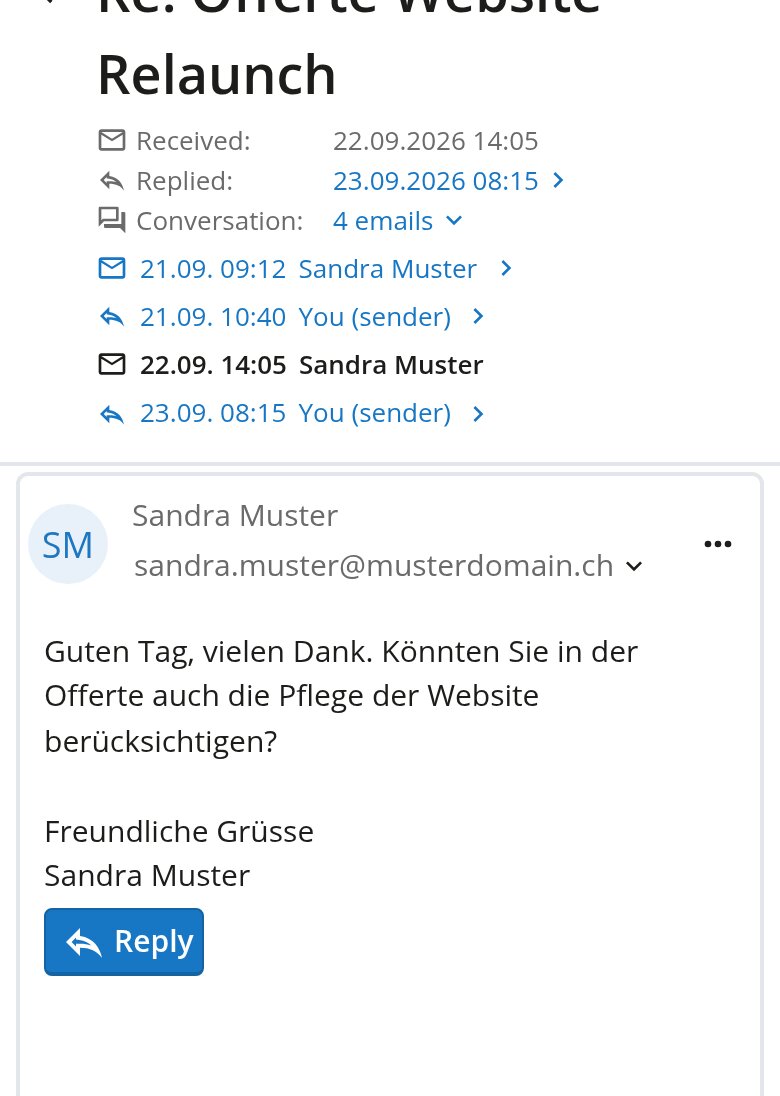
When you open an email in OfficeMail, you see right below the subject when it arrived, whether and when you replied, and which emails belong to the same conversation. You can also reach the email settings from two places.
Received, Replied and Conversation
- Received: the date and time the email reached you. For emails in the Sent folder, this line says “Sent”.
- Replied: if you replied to the email, this shows the time of your reply. Tap the blue date to open your reply. If it only says “yes”, the reply is no longer in the Sent folder, for example because you deleted it.
- Conversation: tap “show” to list all emails of this conversation from your inbox and Sent folder. The envelope stands for received emails, the arrow for your replies. The open email is shown in bold, tap any other one to open it.
In the email list, replied emails have a small arrow in front of the subject. The mark is also set when you reply with Outlook or the mail app on your phone.
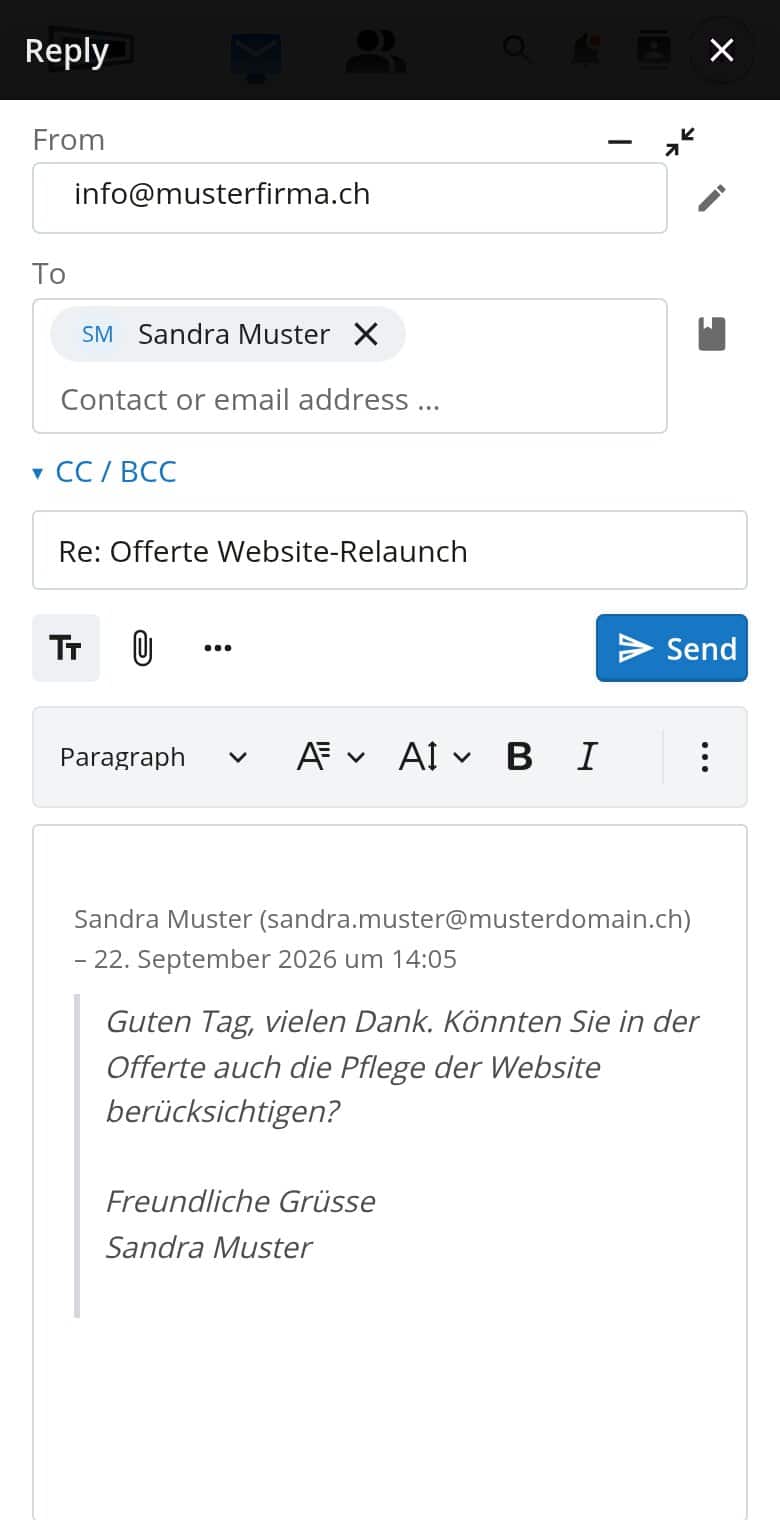
Replying on your phone
The reply window shows sender, recipients and subject at the top. Below is a bar with formatting (Tt), attachment and more options, with “Send” on the right. The formatting bar is open, tap Tt to hide it for the current window. The quoted text sits in a grey box and you write your reply above it. Below the text you can see whether the draft has been saved, and you can delete it there with “Discard”.
Whether you write with or without formatting is set in Mail settings under “Accounts”, then your email address, in “Writing mode” (Rich text or Plain text).
Email settings
All settings for your mailbox, such as sender, password, spam filter, forwarding, signature and automatic replies, can be reached from two places:
- Tap your initials at the top right, then “Settings” and “E-Mail”. The entry sits right below “Personal info”.
- In the email view, tap “Mail settings” at the bottom left. On a phone, open this menu with the three lines at the top left.

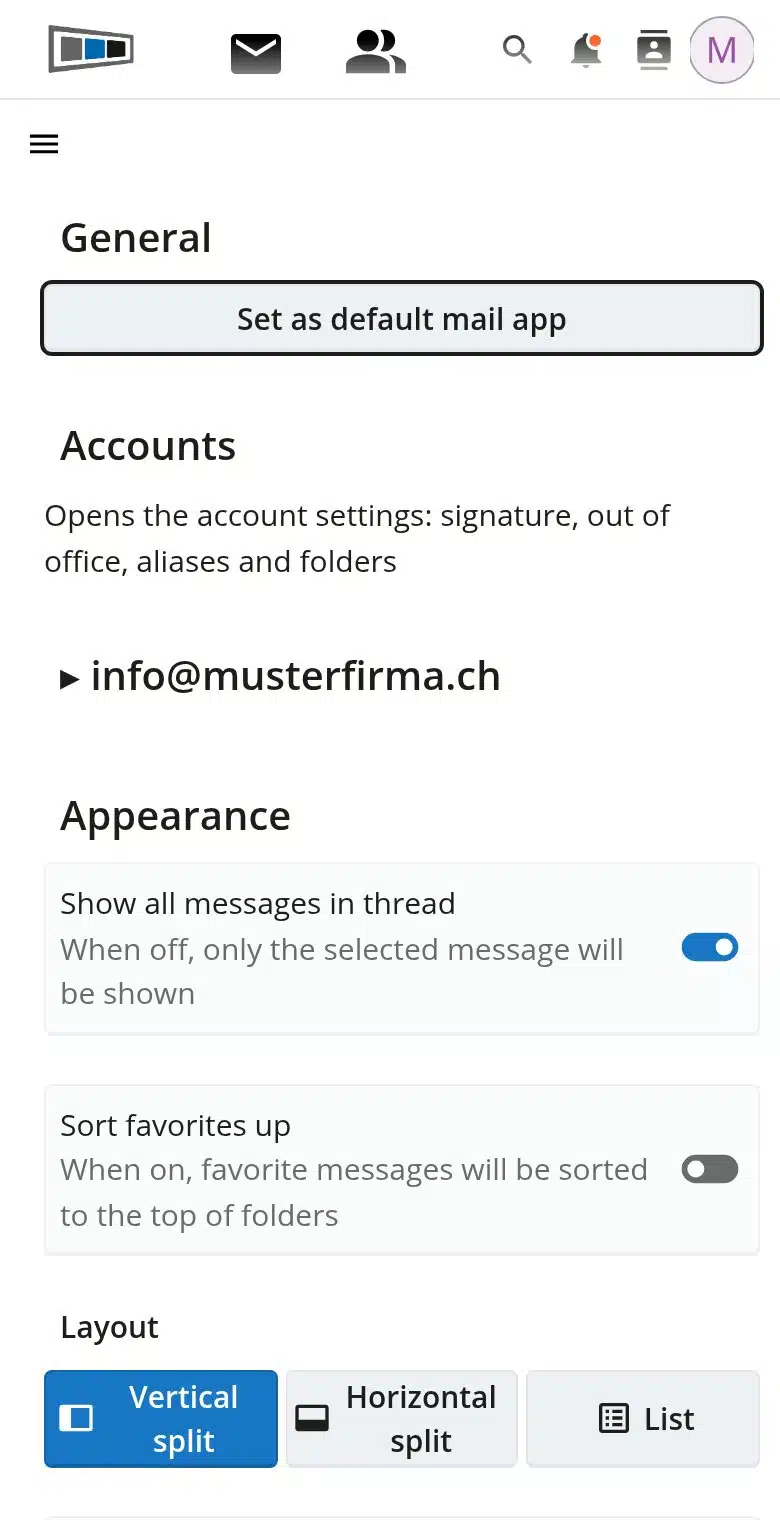
More on password, spam filter and forwarding in the article OfficeMail Account Settings.