



Using OfficeMail
Using OfficeMail
OfficeMail is your online workplace in the browser: email, calendar, contacts, files and Office documents in one place. It comes with every mailbox at FireStorm and replaces the previous webmail. This article shows you how to sign in, what you can do with it and how the packages work.
Coming from the old webmail? You will find answers to the most common questions about the switch in the KB article Frequently asked questions about the webmail switch to OfficeMail.
Signing in
- Open webmail.yourdomain.ch/office in your browser (yourdomain.ch is the domain of your email address, for example webmail.musterdomain.ch/office)
- Sign in with your full email address and your mail password
- The old webmail address still works and redirects to OfficeMail automatically
The password is the same as in your mail client. You can change it in your hosting control panel under Mail. Mail clients, phones and tablets are not affected by OfficeMail and keep working as before.
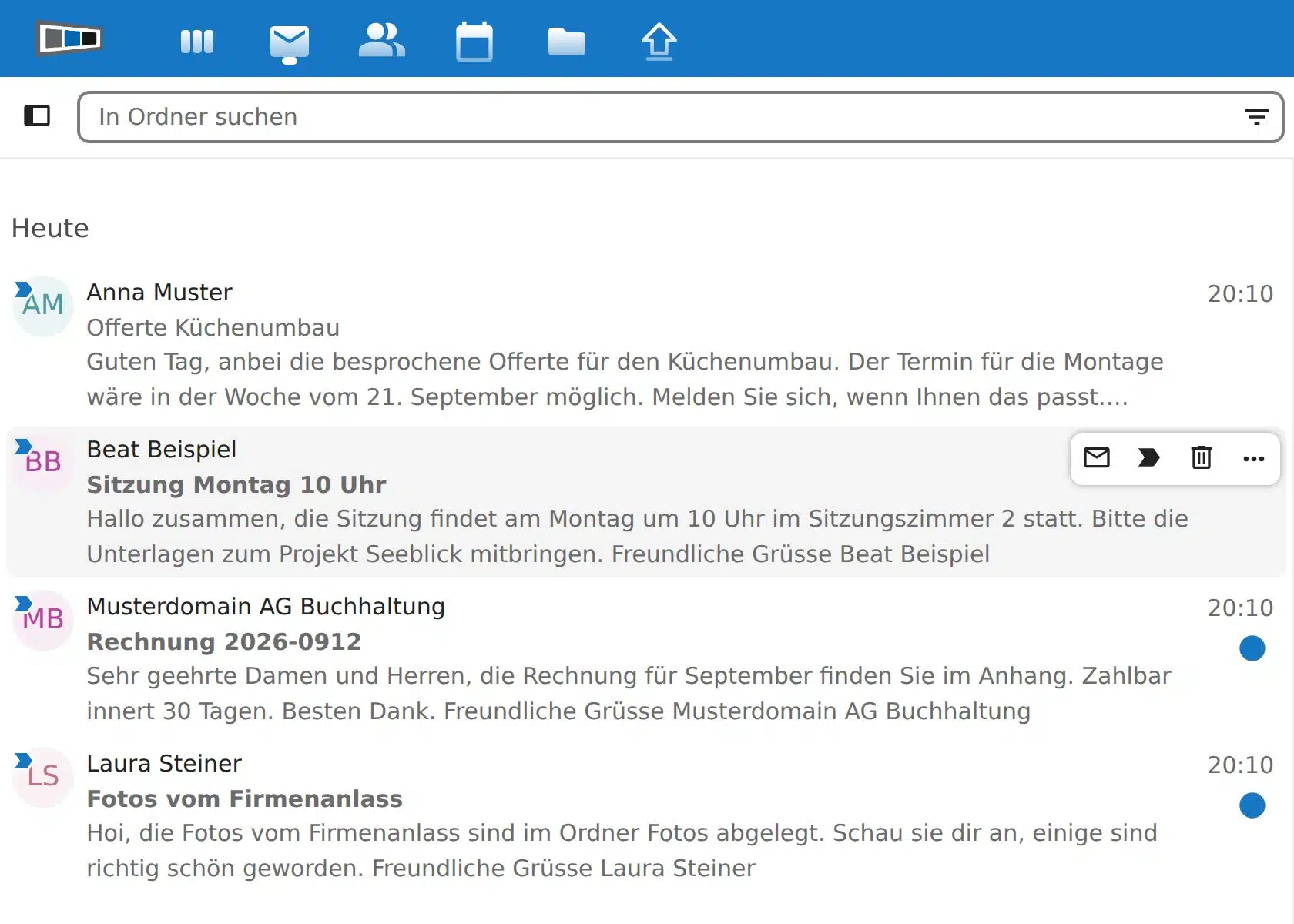
The inbox groups conversations. Use the «New message» button at the top left to write an email; as you type the recipient, OfficeMail suggests matching contacts. The search finds emails by sender, subject or content. With tags you mark emails in colour, for example «Important» or «Invoice».
Password, spam filter, forwarding, signature and out-of-office reply are set up in the account settings: click «Email settings» at the bottom left, then in the left column under «Accounts» click your email address. The autoresponder now lets you set an end date. After that date the out-of-office reply switches itself off again. For details on password, spam filter and forwarding, see OfficeMail Account Settings. We have carried over your contacts, calendars and signatures from the old webmail.
Spam and deleting
Spam is moved automatically to the «Junk» folder. To delete a single email, use the bin icon that appears when you hover over the email. Several emails at once: click the profile picture to the left of the first email to select it. Click the profile picture of the other emails as well, or hold the Shift key and click the last email to select everything in between. A bar appears at the top of the list that lets you delete all selected emails at once or mark them as read. To empty a whole folder such as «Junk» or «Trash», click the three dots next to the folder name and choose «Clear folder». Unwanted emails in your inbox can be marked via the three dots next to the email with «Mark as spam», they are then moved to the «Junk» folder.
Calendar
Your calendar lives on the mail server. Appointments you create in OfficeMail appear instantly on your phone, tablet and in Outlook, provided you have set up Exchange ActiveSync or CalDAV there. The same applies the other way round. Invitations to others are sent directly from the appointment.
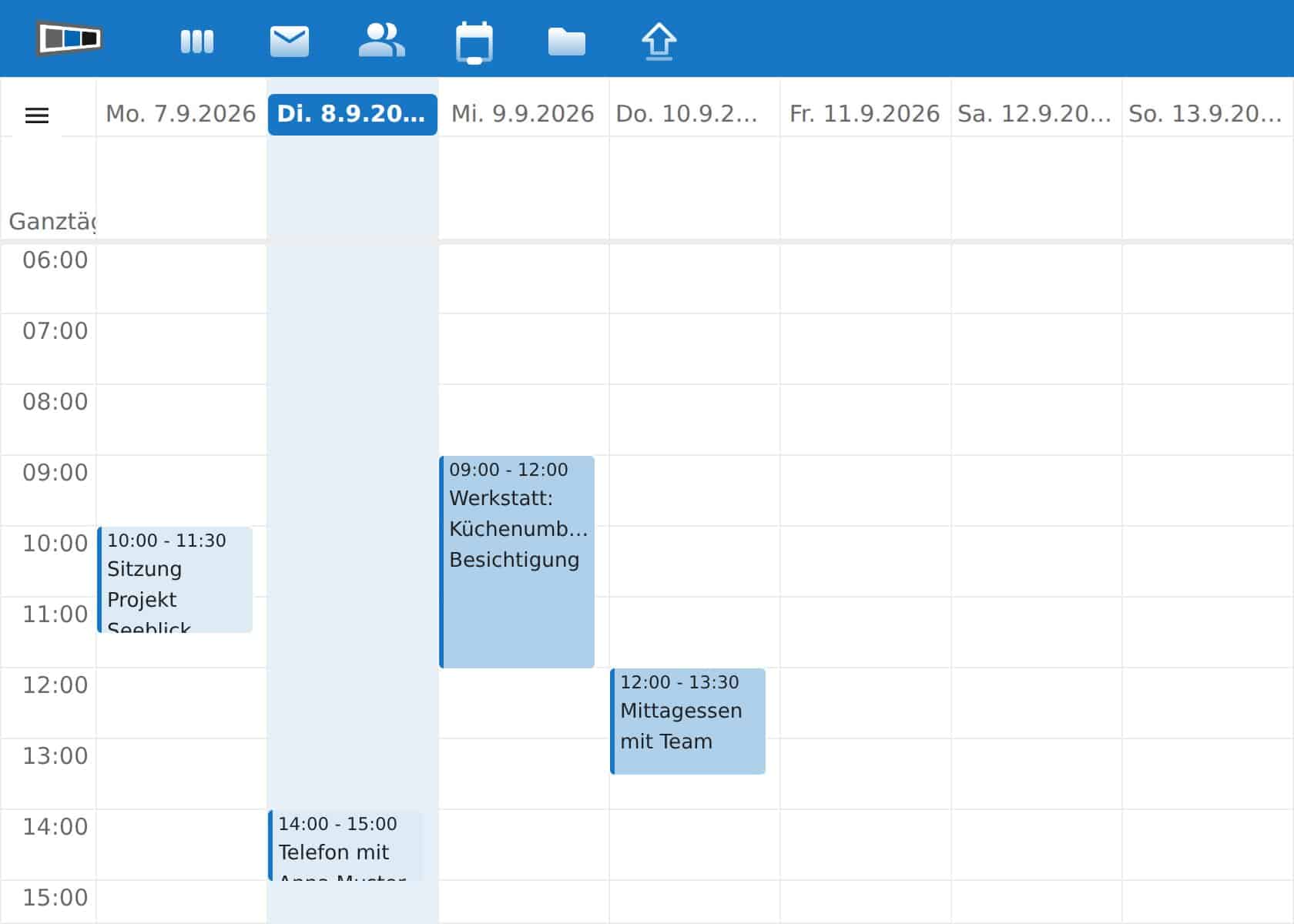
There are also two special calendars. The «Birthdays» calendar is generated continuously from your contacts’ birth dates and cannot be edited directly, it is maintained through the contacts themselves. You can add a holiday calendar via «+ New calendar» and «Add holiday calendar», then select your country from the list. It updates itself automatically from then on.
Contacts
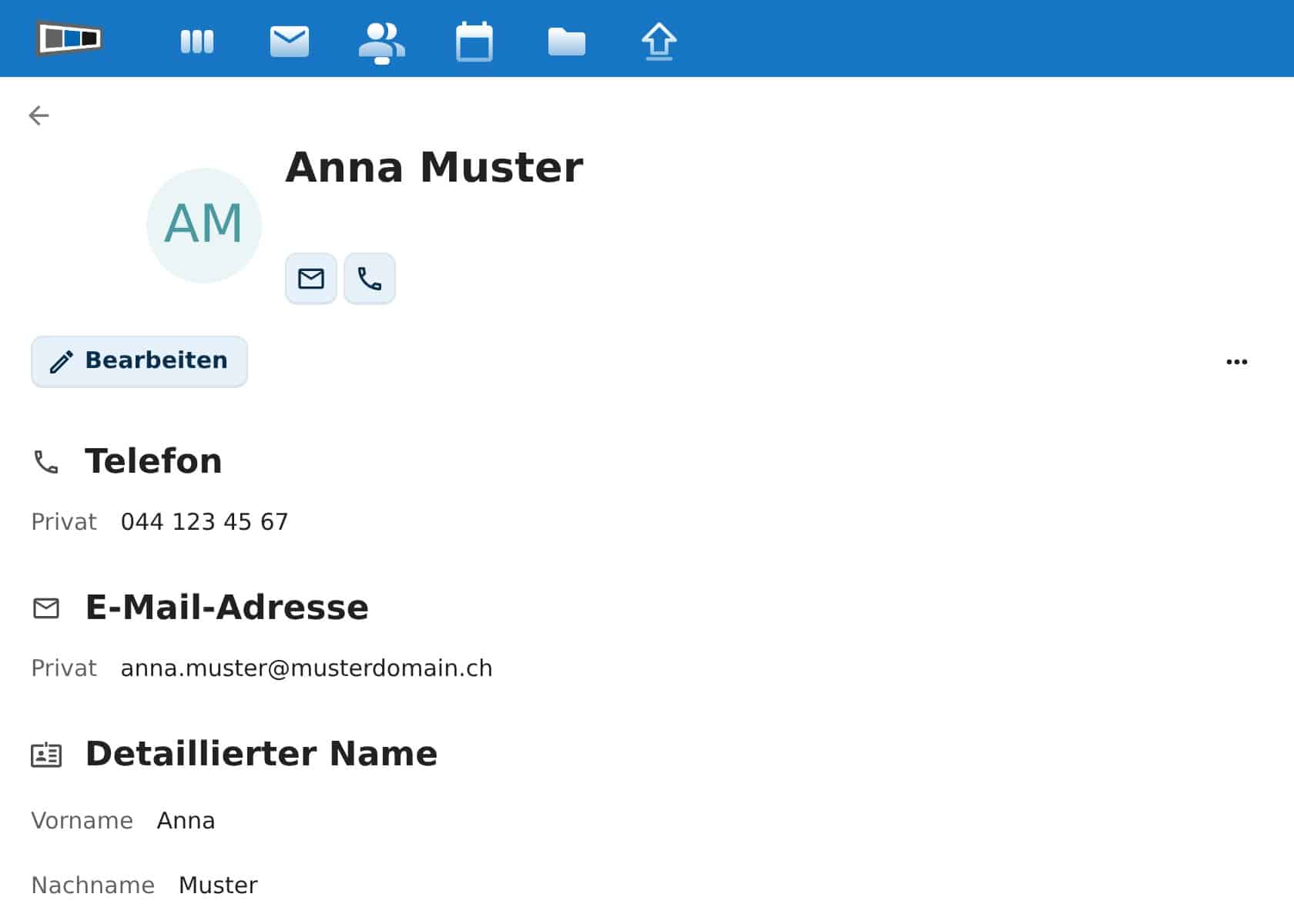
Contacts with phone, address and photo also live on the mail server and are the same on your phone. Contact groups let you combine people, for example «Customers» or «Club», and write to the whole group with one click.
Files
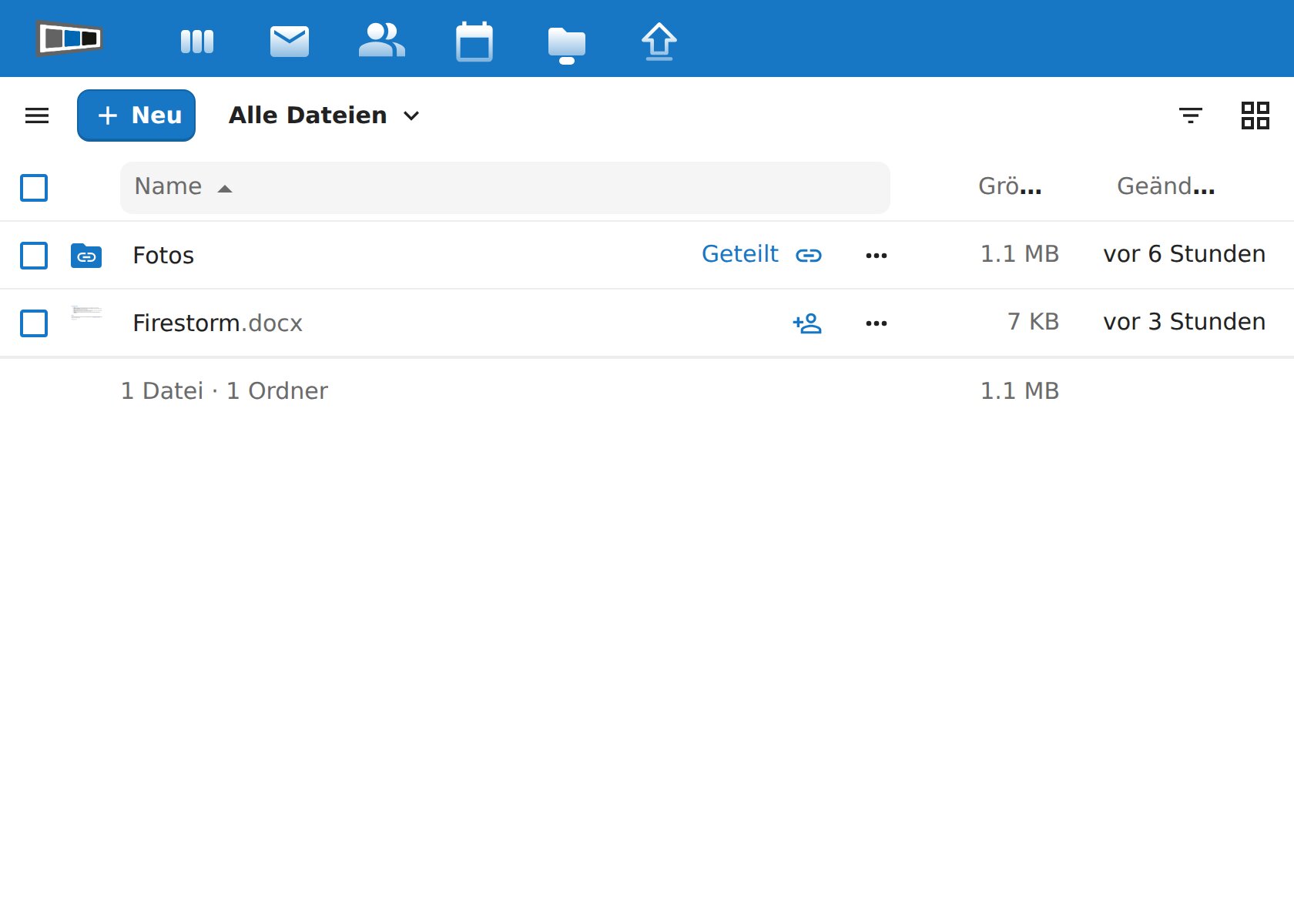
Under «Files» you store documents and photos. Share any file or folder by link: click the share icon next to the file, create a link and set a password and expiry date if needed. The recipient does not need an account. From the Standard package you can sync your files with PC, Mac and phone. To do so, install the Nextcloud app and enter webmail.yourdomain.ch/office as the server address.
Office documents
Open Word, Excel and PowerPoint files directly in the browser with one click. Changes are saved automatically. Several people can edit the same document at the same time once you have shared it with them. Create new documents under «Files» via the plus icon.
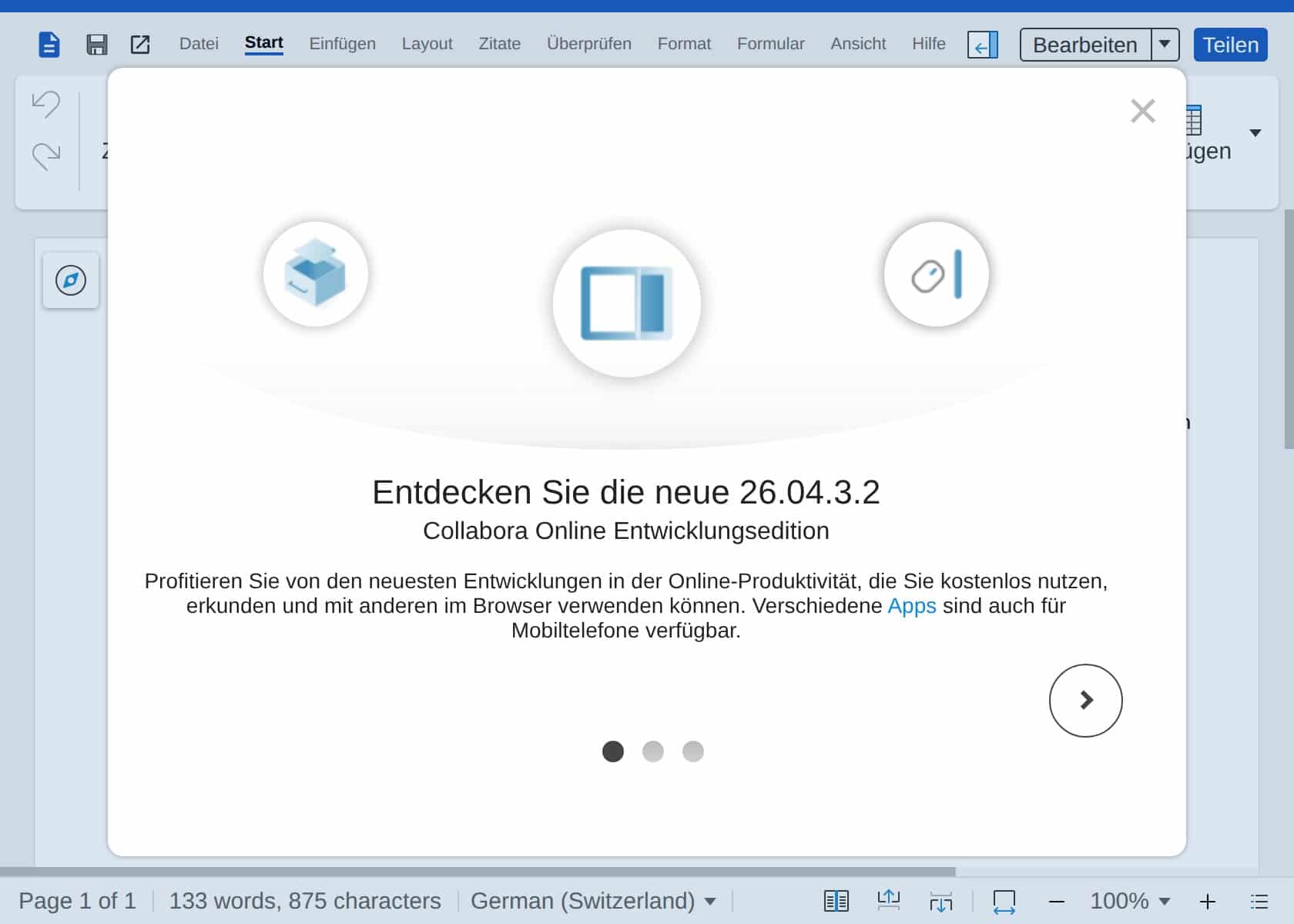
In the Free package, editing is limited to a few documents per day. Once the limit is reached, the document opens read-only and a notice appears. The next day you can edit again; from the Solo package there is no limit. Viewing is always possible.
Tasks, bookmarks and passwords
Under «Tasks» you create to-dos with due dates. They are stored as tasks in your calendar on the mail server and therefore also appear on your phone and in mail clients that support CalDAV tasks. From the Solo package, «Bookmarks» is added: collect links across devices, organise them with tags and sync them via the browser extension. From Standard, the «Passwords» password manager is available, with extensions for Chrome, Firefox and Safari and apps for iPhone and Android. Important: the vault is encrypted with your password and we cannot restore it. Keep your password safe.
Packages and upgrade
The Free package comes with every mailbox. If you need more, pick a larger package in OfficeMail via the «Upgrade» menu:
- Free: free of charge, 100 MB cloud storage, email, calendar, contacts, file sharing, edit Office documents (limited), tasks
- Solo: CHF 3.00 per month, 5 GB cloud storage, mailbox +50 GB, unlimited Office editing, bookmarks, support by ticket
- Standard: CHF 5.00 per month, 25 GB cloud storage, mailbox +100 GB, file sync for PC, Mac and phone, password manager, chat and video for up to 4 people, phone support
- Premium: CHF 7.00 per month, 100 GB cloud storage, mailbox +150 GB, add up to 5 further mailboxes, video with guests by link, priority support
Are you the contract holder of a hosting package with several mailboxes and want to prevent individual staff members from ordering a paid upgrade on their own? In the customer area, open your hosting package under «My Services». In the «OfficeMail» tile, turn on the switch «Upgrade-Hinweise im Webmail ausblenden» (hide upgrade notices in webmail). The upgrade icon then disappears in OfficeMail for all mailboxes of this hosting, and you manage the packages only there.
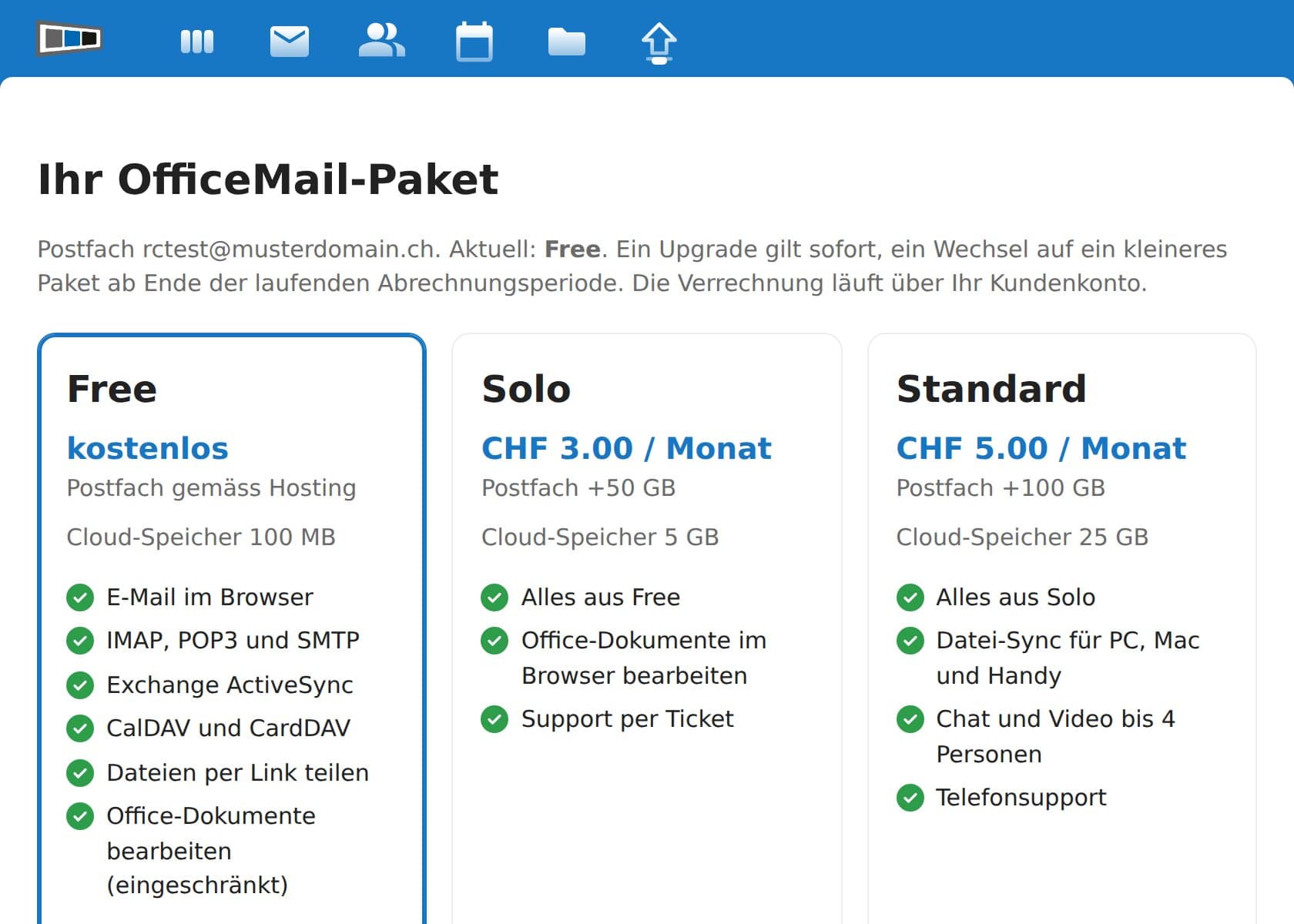
An upgrade takes effect immediately, is billed with your hosting and can be cancelled monthly. A switch to a smaller package is scheduled for the end of the current billing period. Prices in CHF per mailbox and month including VAT. If you obtain your hosting through a reseller, the «Upgrade» menu is not shown; please contact your reseller in that case. For teams with shared folders and more storage there is the Business Cloud.
Adding further mailboxes (Premium)
With Premium you read up to 5 further FireStorm mailboxes in the same interface. Open your personal settings (profile picture at the top right, then «Settings»), choose the «Mailserver-Kalender» section and enter the email address and password of the additional mailbox. It then appears as a separate account in the Mail app, with its own calendar and address book.
Frequently asked questions
- Do I have to install anything? No. OfficeMail runs in the browser on every device. Only the file sync from Standard uses an app.
- Where is my data stored? On our own servers in Switzerland.
- What happens when the mailbox is deleted? If the mailbox is deleted in the hosting control panel, the OfficeMail access and its files are removed after a period of 30 days. Download important files beforehand.
- Can I keep using the old webmail? No, the previous webmail interfaces have been replaced by OfficeMail. Your contacts, calendars and signatures have been carried over.