



CalDAV and CardDAV Windows Hosting
-
Administration
- 30 Days Money Back
- Automatic payments
- Cancel a contract
- Change address data
- Change contact person (company)
- Change password
- Credit rules: choose what your credit is used for
- Display bills
- Emergency support costs
- Enable renewal notifications
- FAQ infrastructure and security
- Fewer Invoices
- Invoice by mail
- Manage Contacts
- Monthly consolidated invoice
- Partner administration
- Password Forgotten
- Payment methods
- Payment slip (QR-bill)
- Product Transfer
- Recruiting friends
- Reminder
- Server Data Centre
- Set up a points alert
- Setting up two-factor authentication
- Storage Overview for Resellers
- Top up credit
- Unlock Express
- Webmail Link
- weitere Artikel ( 24 ) Einklappen
-
Cloud Storage
- Add as network drive
- Create cloud storage user
- first steps
- Login Cloud Memory
- mount under Linux
- Nextcloud: cloud icon on files
- PC backup to the cloud
- weitere Artikel ( 2 ) Einklappen
-
DNS Service
- CAA DNS Record
- Change DNS entries
- Change SPF entry
- DNS API
- DNS API Powershell example
- DNS Entries in the DNS Package
- DNSSEC Deactivate
- DynDNS with a MikroTik router
- Let's Encrypt with Cert Warden
- Let's Encrypt with DNS validation
- Questions about DNS Service
- Set up your own SPF server
- SPF entry
- TLD's that support DNSsec
- weitere Artikel ( 9 ) Einklappen
-
Domain
- .ZUERICH DOMAINS Register
- Activate Whois Privacy
- Cancel domain and get auth code
- Change contacts
- Change DNS entries
- Change DNS Server
- Check DNSSEC
- Configure domain for mail traffic
- Connect or forward a domain
- Connect website to Squarespace
- Connect website with Wix
- Connect your website to Jimdo
- Deactivate DNS Records
- DNSSEC
- DNSSEC Deactivate
- Domainreseller
- Enable Domain Access
- Enable domain forwarding
- Extend domain
- Google Optimization
- Google search optimization
- Google SiteVerification
- Link domain
- Own Nameserver
- Proper DNS records
- Questions about the domain
- Restore a domain
- Restriction forwarding
- Search engine registrationa
- Sell your domain: how to put a domain up for sale
- Set up your own SPF server
- Transfer domain
- Use an external domain
- What is DANE/TLSA?
- What is MagicDANE?
- weitere Artikel ( 30 ) Einklappen
-
Email
-
- Email does not reach me and the sender did not receive an error message
- Error "Client host rejected: cannot find your hostname"
- Gmail is blocking mails
- I get an error message when I send an email.
- I'm on a blacklist
- MacMail Problem: Required mailbox name to create ImapMailbox for (null)
- Proper DNS records
- Request emergency service
- weitere Artikel ( 3 ) Einklappen
-
- keine Artikel vorhanden
-
- keine Artikel vorhanden
-
- keine Artikel vorhanden
-
- Address book in Thunderbird
- Iphone Mail Setup
- Move an Exchange ActiveSync Account
- Set Up an Autoresponder in Office 365
- Set up Android email
- Set up CALDAV
- Set up DKIM
- Set up e-mail
- Set up Exchange ActiveSync (EAS)
- Set up Mac Mail
- Setting up an email account in Thunderbird
- SETTING UP CARDAV
- Setting up Outlook
- weitere Artikel ( 8 ) Einklappen
- Are our e-mails encrypted?
- Automatic e-mail reply
- Automatic mailbox cleanup
- Backup emails locally
- Change password
- Customize e-mail addresses in the Microsoft Portal
- E-Mail Signature
- E-Mail-Transfer Outlook (PST-File)
- Enable Greylisting
- external name servers
- Frequently asked questions about the webmail switch to OfficeMail
- Gmail is blocking mails
- Important SPF entries
- JUNK Mail in Outlook
- Mail Log
- Newsletter Server important questions
- OfficeMail Account Settings
- Replies, conversation and settings in OfficeMail
- Report SPAM Mails
- Restriction forwarding
- Send e-mails
- Send email as attachment
- Set up email alias
- Setting up an email account in Thunderbird
- SPF entry
- Using OfficeMail
- Webmail Link
- Webmail Login does not work
- What is DANE/TLSA?
- What is DKIM?
- What is MagicDANE?
- Why Are My Emails Delayed?
- weitere Artikel ( 27 ) Einklappen
-
-
Server
-
-
- keine Artikel vorhanden
-
- Add PHP version to chrooted
- Apache2 does not start
- Create customer in reseller hosting
- Enable DNS Blacklists
- Install Node.JS version
- Linux: Too many open files in Ubuntu
- List storage space from Reseller
- Plesk can't start PHP-fpm
- Plesk DNS Manager Extension
- Plesk ELS
- Plesk Log Files
- PostgreSQL Update
- Repairing databases
- Special character problems
- Upgrade MSSQL Server
- Use PHP version
- weitere Artikel ( 11 ) Einklappen
- Allow Support Team Access
- Backup setup
- Change reverse DNS (PTR) for your server
- Change the hostname of your root server
- Convert Ubuntu MBR to GPT
- Empty directory quickly
- Empty Mailq
- Enlarge partition at Ubuntu 16.04
- How do I log in via SSH?
- Important Docker commands
- Log and notifications
- Monitoring of RAID controllers
- MySQL with Docker
- Optimize your server
- Plesk ELS
- Proxmox installation problem: Fix Black Screen
- Questions about the root servers
- Reinstallation
- Remove Ubuntu old kernels
- Repair Mysql / MariaDB databases
- repair quota
- Resetting Windows password
- restore very old website
- Run ImunifyAV as a Service
- Securing your root server
- Server does not boot
- Set up Mysql replication server
- Set up Remote Desktop licence
- Setting up Jitl
- SNF filter does not start
- SSH warning: host key changed
- Start NGINX manually
- Ubuntu Upgrade Service
- Unlock foreign access
- Websites sporadically unavailable
- Windows Server 2019 Change language
- WordPress installieren
- weitere Artikel ( 32 ) Einklappen
-
-
-
ShopDesigner
-
SiteDesigner
-
- 01 Adding and moving content
- 02 Colors and fonts
- 03 Website designs
- 04 Use a stock image
- 05 change an image
- 06 Add page
- 07 Set up a store
- 09 Site analytics
- 1.01 SiteDesigner Quickstart
- 1.02 Add basic page information
- 1.03 Change the appearance of your page
- 1.04 Pictures, Galleries and Presentations
- 1.05 Text and headings
- 1.09 Hide incomplete pages
- 1.10 Forms, cards and other content
- 1.11 Setting Language, Currency and Units
- 1.14 Re-sort and rearrange pages
- 1.15 SiteDesigner Mobile and mobile phone quick start
- 1.16 SiteDesigner Tablet Quickstart
- 1.17 How does the Template Editor work?
- 1.20 Undo changes
- 1.22 Setting up a user-defined contact form
- 10 Setup a blog
- 12 Multiple language sites
- 15 Contact forms
- Add Google Analytics
- Add Google Calendar
- add more pages to SiteDesigner
- Add number of pages to my page
- Add type of content to my website
- Advantage of SiteDesigner
- Booking and calendar tool for SiteDesigner
- Create a link to any page
- Definition SiteDesigner
- Edit Site Template CSS
- Edit SiteDesigner with HTML code
- Embed external website
- Export page from SiteDesigner and send it to another server via FTP
- good page ranking?
- Request Backup
- Request emergency service
- SiteDesigner Backup
- SiteDesigner Move Package
- Take website offline
- Webhosting to the SiteDesigner?
- weitere Artikel ( 40 ) Einklappen
- 01 Adding and moving content
- 02 Colors and fonts
- 03 Website designs
- 04 Use a stock image
- 05 change an image
- 06 Add page
- 07 Set up a store
- 09 Site analytics
- 10 Setup a blog
- 12 Multiple language sites
- 15 Contact forms
- Change language
- Fixed menu in the SiteDesigner
- PopUp hinzufügen
- SiteDesigner access
- weitere Artikel ( 10 ) Einklappen
-
SMS Gateway
-
SSL Certificates
- Activate SSL certificate
- Activate SSL certificate for forwarding
- Browser is not supported
- Certification Requirement (CSR)
- Conditions to be fulfilled
- Creating a Certification Requirement (CSR) for Apache
- Definition SSL CERTIFICATE
- Difference Domain and Identity Certification
- Intermediate certificate
- Let's Encrypt does not work
- Requirements for issuing an SSL Certificate
- SiteSeal
- SSL API
- SSL in Java Keystore
- the right certificate
- Wildcard certificate
- weitere Artikel ( 11 ) Einklappen
-
Technical
-
- Add LVM-Thin
- Booting from Hard Disk...
- Cache Settings
- CloudInit set up
- Import Windows
- Important Proxmox commands
- Install QEMU Guest Agent
- Installation frozen
- LVM Rename
- Migration shows no progress
- Nested Virtualisation
- No Login Prompt on a VM
- Optimise performance
- Proxmox Cluster Nodes No Longer Visible in GUI
- Proxmox shutdown
- Proxmox with Highpoint does not boot
- Proxmox with question Mark
- Reinstalling Proxmox-Server in Cluster
- Remove Proxmox VM Disk
- Repair Proxmox Cluster
- Replace ZFS disk
- Run Proxmox with NVME RAID
- VM hangs: Booting from Harddisk
- weitere Artikel ( 18 ) Einklappen
-
- keine Artikel vorhanden
- Deactivate DNS Records
- Find Server by IP Address
- Fixing Synology file system errors
- LVM Rename
- Nextcloud Office Upgrade
- PowerDNS CLI Administration
- Proper DNS records
- Reinstalling Proxmox-Server in Cluster
- Restore rsnapshot Backup
- SOPHOS FIREWALL DOES NOT START
- Sophos Serial Number Shows "Default string"
- weitere Artikel ( 6 ) Einklappen
-
-
Webhosting
-
-
- Bugfix: Wordpress does not work anymore
- Copy WordPress
- Customizing the domain of a Wordpress website
- Increase PHP timeout
- Increase WordPress file upload limit
- Installing Wordpress
- load-scripts.php 500 Internal server error
- Move WordPress to FireStorm
- Permalinks in Wordpress (Windows)
- Rename URL
- Switch off Wordpress maintenance mode
- Transfer Wordpress Website
- WordPress - Login button is not displayed
- Wordpress DSGVO Tools (GDPR) hacked
- Wordpress login doesn't work, password reset doesn't work either
- WordPress: security measures
- xml-rpc.php Forbidden
- weitere Artikel ( 12 ) Einklappen
-
- Check website for viruses
- Exclude folders from search engine
- Files are listed
- IP address blocked
- Log files
- Website loads slowly
- weitere Artikel ( 1 ) Einklappen
- Activate SSL certificate
- add another user
- Address book in Thunderbird
- Advantages of a website
- Backup Manager: restore your data yourself
- Blocking access for certain countries
- Browser Error Codes
- Change PHP version in Plesk
- Database user password change
- Difference between UNIX & Windows Hosting
- Disable Website Cache
- Enable Directory Listing
- external access to database server
- How to create a custom error page
- Log in to Plesk
- Move hosting package
- Node.js as a permanent service
- NodeJS Setup
- PHP disabled functions
- PHP.ini configuration
- Planning tasks
- Plesk Backup Manager
- Protect Website
- Request Backup
- restore very old website
- Ruby einrichten
- Transfer Website
- Unlock foreign access for databases
- Web Deploy XML File
- Website migration
- weitere Artikel ( 25 ) Einklappen
-
-
Website-Builder
CalDAV and CardDAV Windows Hosting
Set up CalDAV in Outlook with Windows Hosting
Important: This guide is for internet calendar and contact synchronisation for Windows Hosting customers.
The MailEnable Outlook Connector allows you to synchronise calendars and contacts directly in Microsoft Outlook.
1. Download and install the software
Download and install the MailEnable Outlook Connector: DOWNLOAD
Close Outlook before installation. After installation, restart Outlook.
Note: If Outlook displays the setup wizard on startup, cancel it. Then create the account manually via File / Add Account.
2. Add an account
Outlook 2007:
- Menu “Tools” → “Account Settings”
- Click “New…”
- Select “Other” → “MailEnable Server” → “Next”
Outlook 2010:
- “File” → “Account Information” → “Add Account”
- “Manually configure server settings or additional server types” → “Next”
- “Other” → “MailEnable Server” → “Next”
Outlook 2013 / 2016 / 2019:
- “File” → “Account Information” → “Add Account”
- “Manual setup or additional server types” → “Next”
- “Other” → “MailEnable Server” → “Next”
3. Configure the account
Enter the following details in the configuration window:
| Email Address | Your full email address (e.g. info@yourdomain.ch) |
| Password | Your email password |
| Server Address | Your server name (e.g. sr12.firestorm.ch) — you can find this in your Plesk login or welcome email |
| User Name | Your full email address |
| Your Name | Your display name |
| Description | Any name for the account (e.g. “Office” or “Company”) |
Click “Detect Settings” to test the connection. If everything is correct, confirm with “OK”.
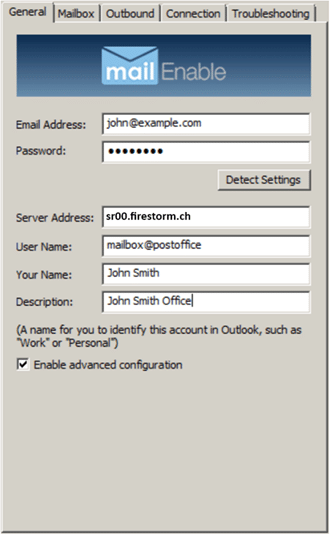
Please replace sr00.firestorm.ch with your own server number.
4. Use calendars and contacts
After successful setup, the following will appear in Outlook:
- Calendar: Under “Calendar” you will see the synchronised CalDAV calendar
- Contacts: Under “Contacts” you will find the synchronised CardDAV address book
New appointments and contacts are automatically synchronised with the server.
Troubleshooting
- Connection fails: Check that the server address is correct and you are using the right password.
- “MailEnable Server” does not appear: Make sure the Outlook Connector is installed and Outlook has been restarted.
- Server address unknown: Log in to admin.firestorm.ch — the server name is in your product details.