



New: The Mail Helper Finds Your E-mail Settings
Which incoming server, which port, which encryption? These questions come up every time you set up an e-mail account. From now on, the new Mail Helper answers them for you: enter your e-mail address and you instantly get the correct IMAP, POP3 and SMTP settings for your FireStorm mailbox. You will find it in the customer center under the new Mail Helper tab or directly at admin.firestorm.ch/mailhelfer.



How it works
In the customer center, open the Mail Helper tab on the right and click Open e-mail setup. Enter your e-mail address and the helper does the rest: it checks your domain, finds the responsible mail server and shows you the settings for your mail client. If your domain does not point to FireStorm at all, the helper tells you that too, including the mail servers it found.
 Enter your address and you are done: the helper shows all settings for your mailbox
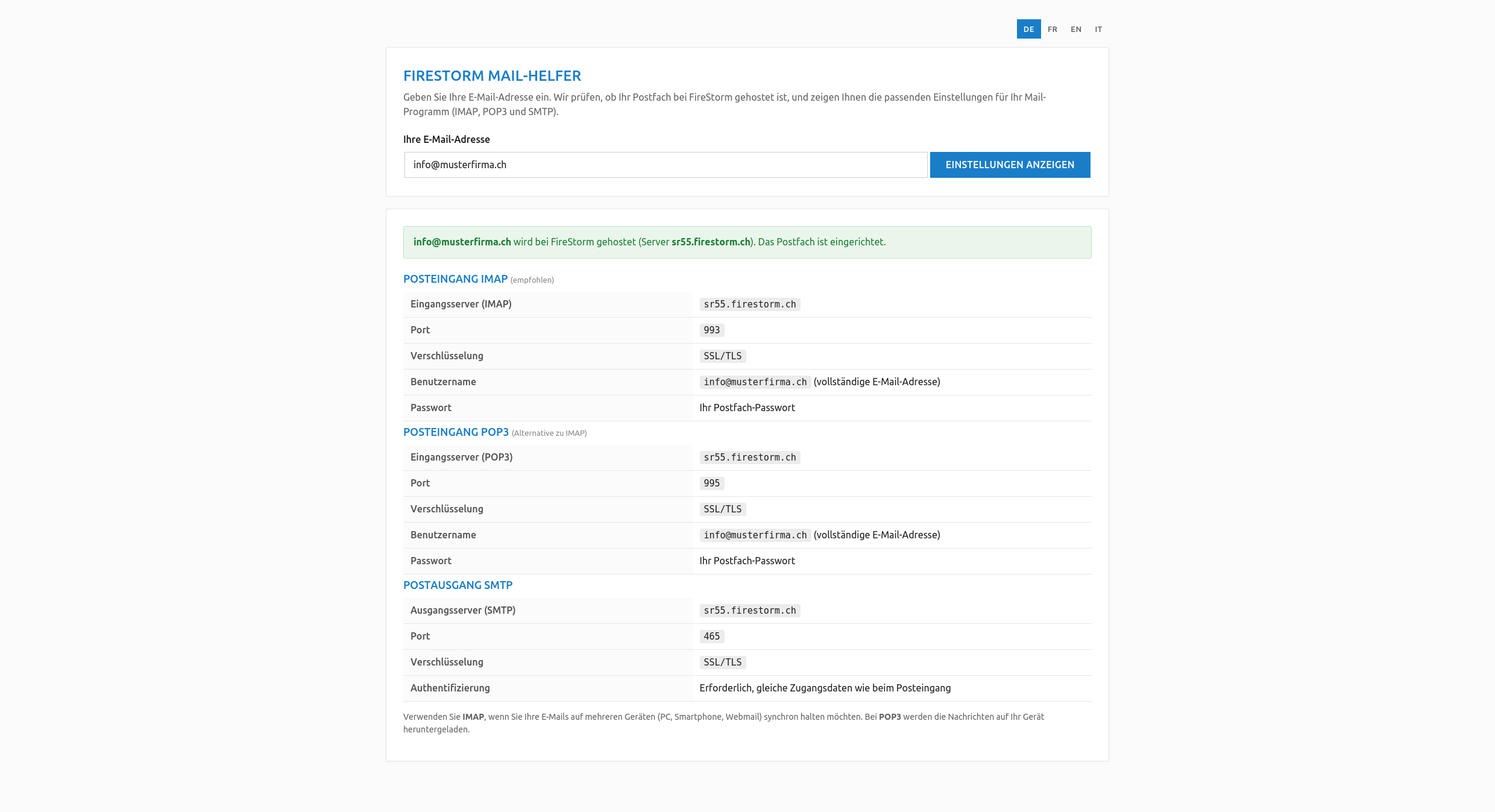 Enter your address and you are done: the helper shows all settings for your mailbox
 The new tab in the customer center takes you straight to the helper
 The new tab in the customer center takes you straight to the helper
Who benefits
Anyone setting up a new device, switching phones or creating a mailbox for someone on the team. Instead of digging through old notes or opening a ticket, the e-mail address is all you need. And if you are unsure about an existing setup, you can double-check the details with the helper at any time.
You will find a step-by-step guide for your mail client in the KB article Set up e-mail.